





The schedule for all RuKidsClub group classes is available here:
RuKidsClub → Group Classes → Schedule
Class times are automatically displayed in your local time zone, so you do not need to convert the time yourself.
To book a group class, you must be logged into your account and have an active package.
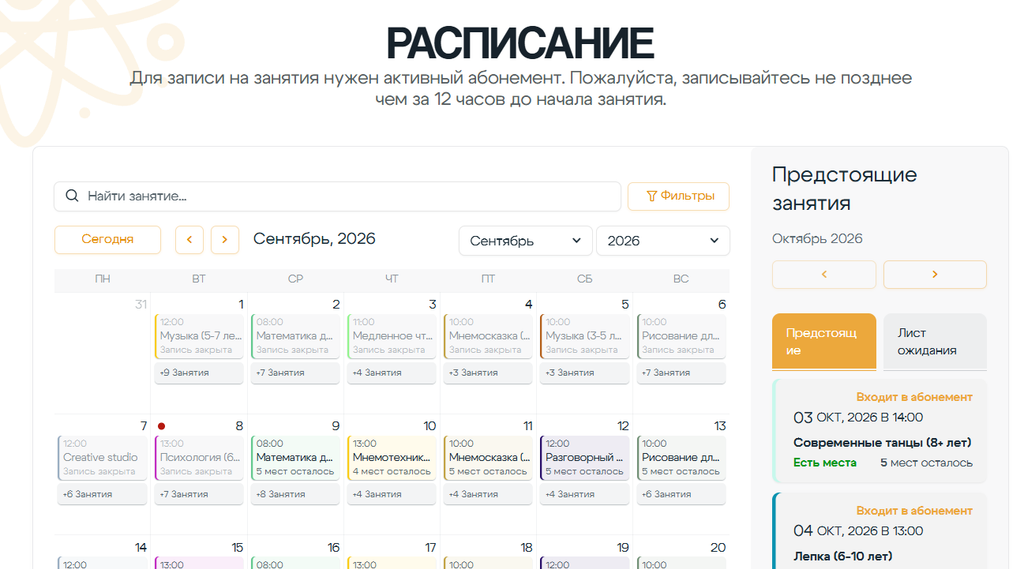
Please note: we recommend booking a class no later than 12 hours before it starts.
1. Check your account information
Before booking, log in to your RuKidsClub account.
Go to:
My Account → Account Settings
and make sure the following information is correct:
- first name;
- last name;
- email address.
If anything needs to be changed, update it before starting the booking process and save your changes.
2. Check your student list
Go to:
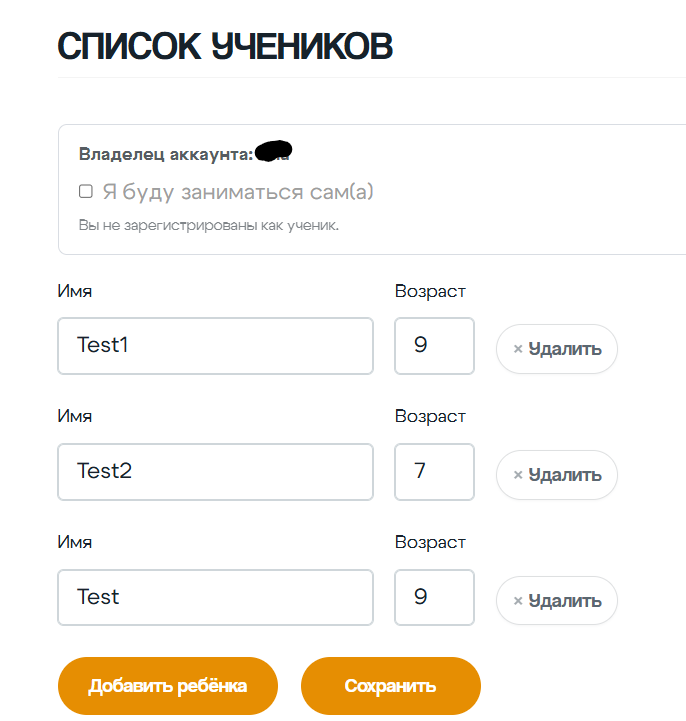
My Account → Student List
Make sure the child you want to book the class for is listed and that their information is correct.
Here you can:
- update the child’s name;
- update the child’s age;
- add a new child;
- remove an unnecessary entry.
After making any changes, be sure to click Save.
For some families, we have already added children to the account, so please check the existing list first and do not add the same child again if they are already there.
If the account holder is also taking classes at RuKidsClub, select “I will be taking lessons myself.”
3. Purchase a package
To book a group class from the Schedule, you need an active package.
Package information is available under:
RuKidsClub → Group Classes → Packages
You can also choose a suitable package and purchase it here before booking group classes.
For new club members who have not yet registered on the website, the option to attend the first group class for free is still available. This trial coupon is valid for 30 days from the date of registration.
4. Choose a class
Go to:
RuKidsClub → Group Classes → Schedule
and find the class you want.
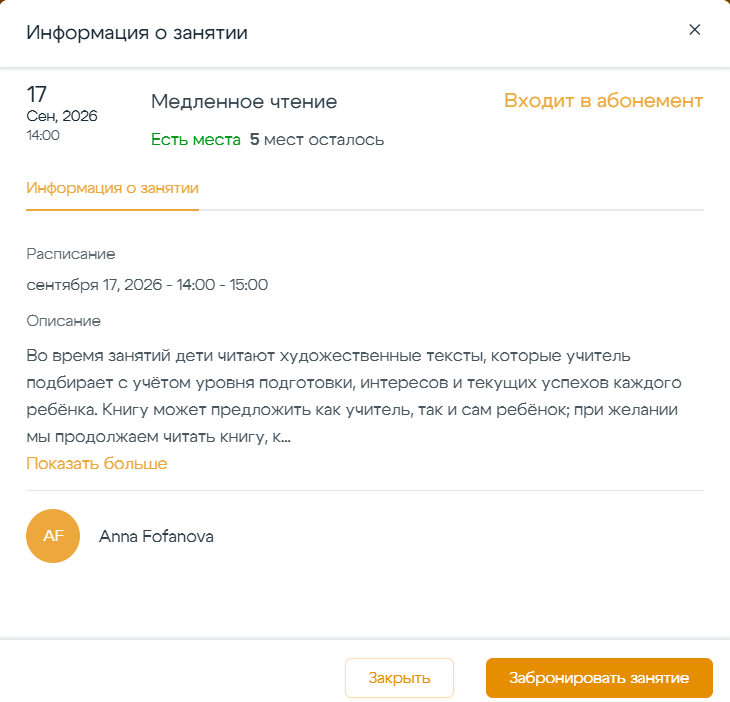
Click the class to open the full details.
You will see:
- date and time;
- class description;
- teacher;
- number of available spots;
- whether the class is included in your package.
If the class works for you, click Book Class.
5. Choose the student
On the next step, select who will be attending the class.
If there are several children in your account, make sure you select the correct child.
One class will be deducted from your package for each selected child.
Click Continue.
6. Check your contact information — do not change it during booking
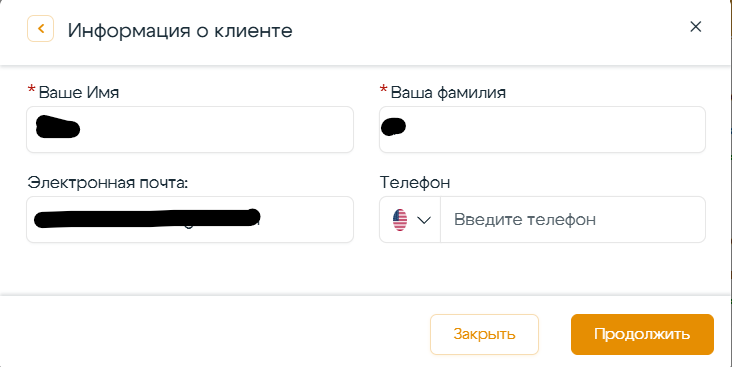
On the next step, the system will display your contact information:
- first name;
- last name;
- email address;
- phone number, if provided.
Important: Do not change your first name, last name, or email address directly in the booking window.
This information is pulled from the main details in your RuKidsClub account. If you change it only during the booking process, the booking may not be processed correctly.
If you notice an error:
- close the booking window;
- go to My Account → Account Settings;
- correct the information;
- click Save changes;
- start the booking process again.
If everything is correct, do not change anything and simply click Continue.
7. Confirm your booking
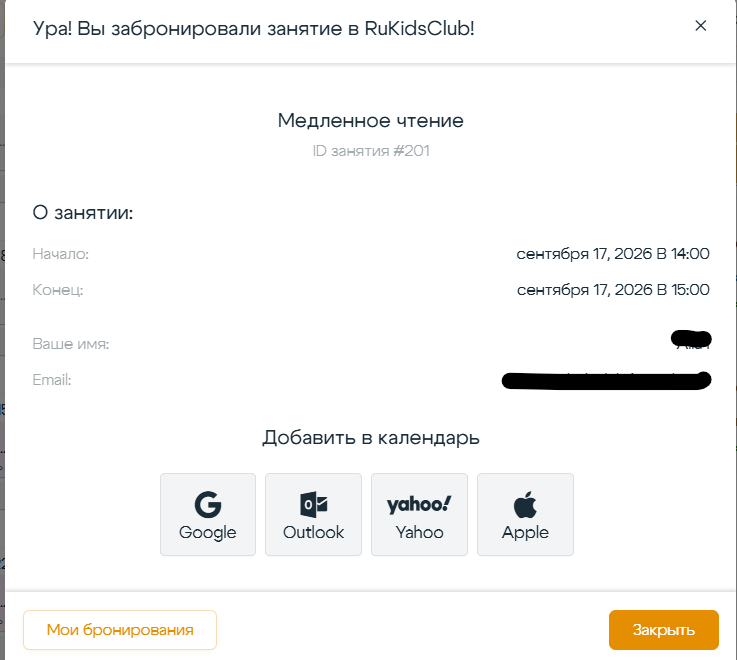
After the booking is completed successfully, you will see a confirmation page with the class details.
You will also be able to add the class directly to your calendar.
A booking confirmation and any necessary notifications will also be sent to your email address.
8. Where to find your group classes
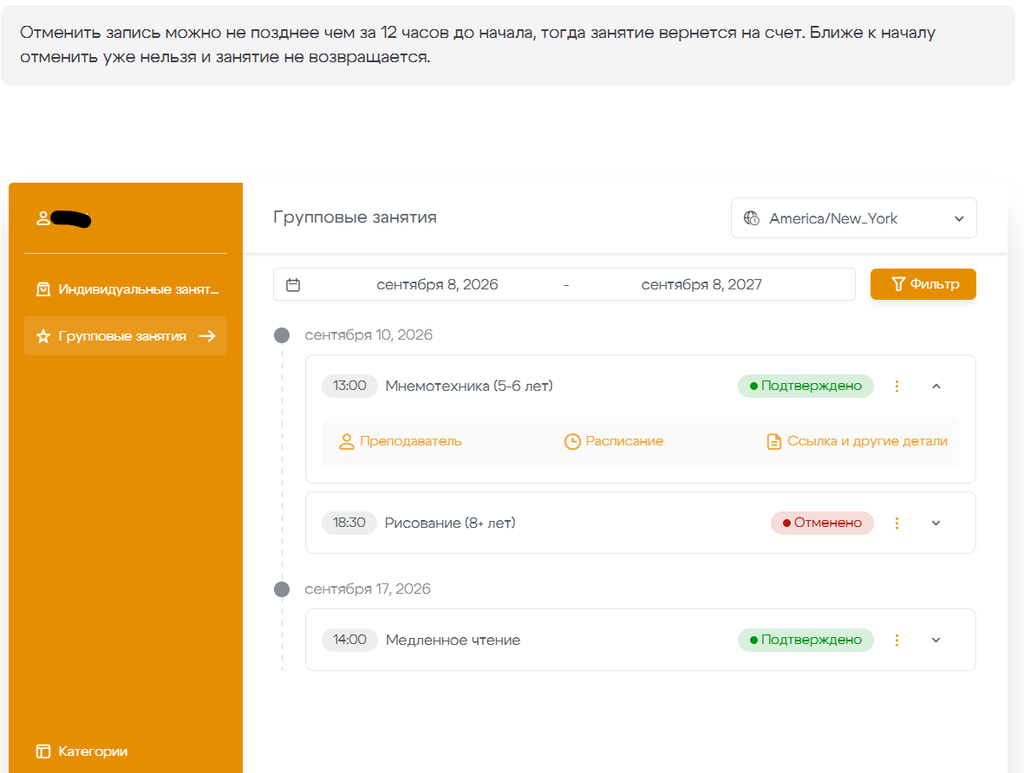
All your bookings are available under:
My Account → My Classes → Group Classes
Here you can view your upcoming and canceled group classes.
Click a class to expand the additional information.
Under “Link and other details”, you may find:
- the class access link;
- class materials;
- additional instructions;
- other information from the teacher.
9. How to cancel a class
You can cancel a group class in your account no later than 12 hours before the class starts.
If you cancel on time, the used class will automatically be returned to your package and can be used for another booking.
If there are less than 12 hours left before the class starts:
- the booking can no longer be canceled;
- the class will not be returned to your package.
10. Where to view your package
Go to:
My Account → My Packages
Here you can see:
- how many classes you have left;
- how many classes were originally included in the package;
- active packages;
- used packages;
- purchase date;
- expiration date for each package.
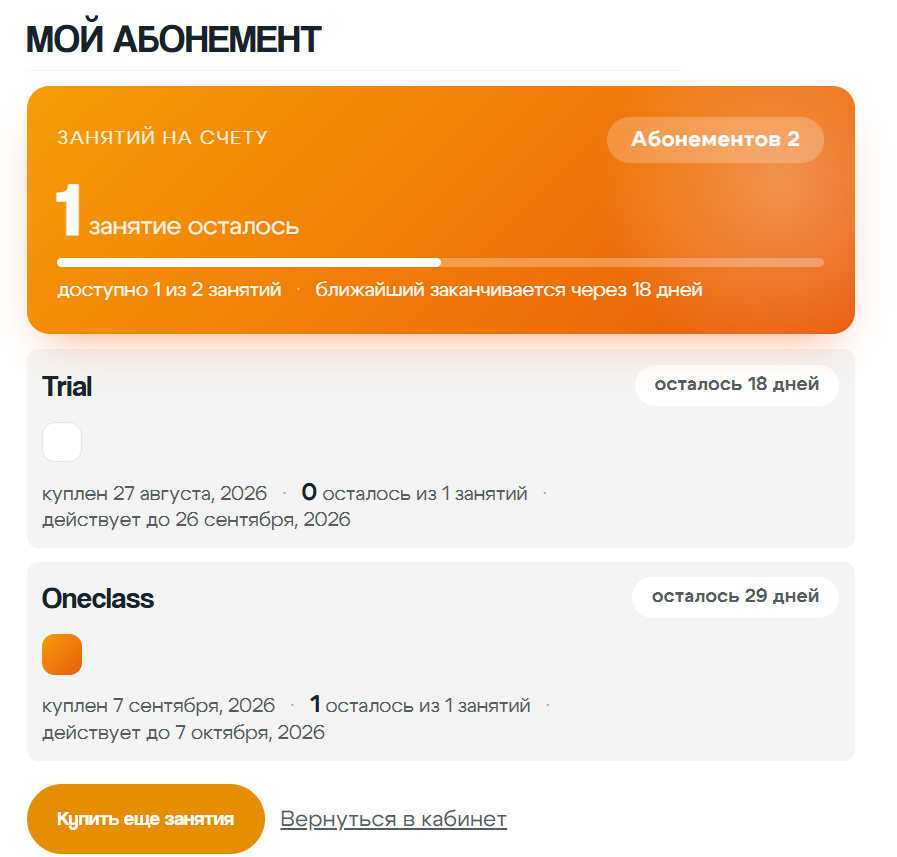
This allows you to quickly check how many group classes are still available for booking.